Engineering Guides
Redact PII from your logs with Grepr



Sensitive data has a way of ending up in logs. A developer adds a log line while debugging, and a week later customer names or emails are running through your pipeline where they were never meant to be. You want that data redacted, you want to be sure the fix works before it touches production, and you want it managed as code so it does not get lost. This walkthrough shows how to do all three, using the Grepr CLI, the Grepr Claude Code plugin, and Terraform.
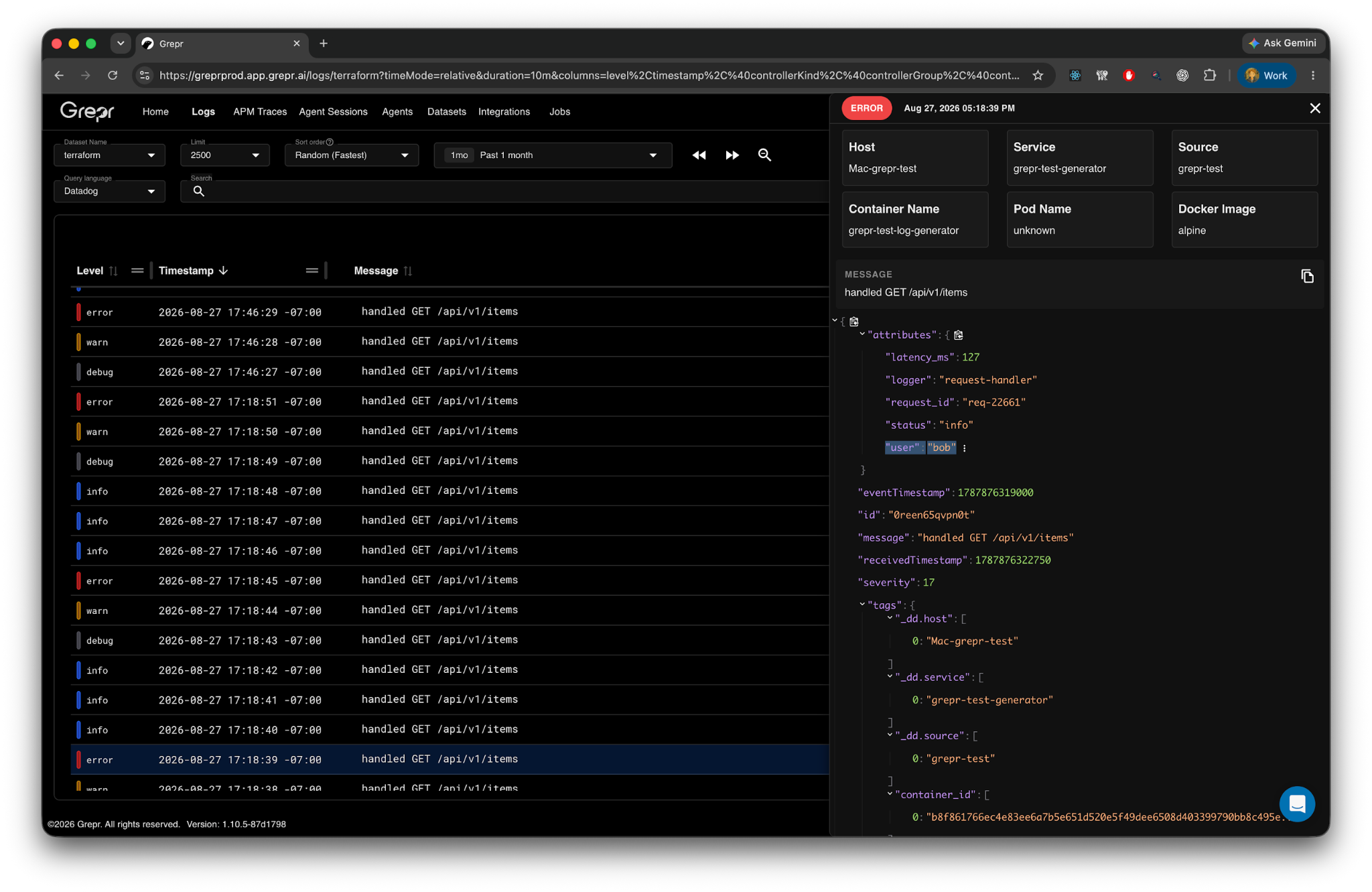
Inside the attributes of each event is a user field, and it is carrying potential PII, in this case the first names of users. That is exactly the kind of data you do not want flowing downstream to your observability vendor. The goal is to mask the user attribute's value so it shows "redacted."
Rather than hand-writing the masking configuration, prompt a Claude Code agent. `In our pipeline, add a masking operator that redacts the user attribute's value to "redacted." Then, test it with the Grepr CLI's job draft action against live traffic, and prepare the change for Terraform.`
Claude loads the Grepr Claude Code plugin, invokes a masking skill for more context, then generates the masking change for the pipeline and runs a preview version job to verify the fix correctly masks the PII.
The draft job is a key piece to understand here. It runs real, live traffic through a copy of the pipeline with your change in place, but it does not write the output anywhere. Nothing lands in your data lake, and nothing goes to your vendor sink, such as Datadog. It inspects the log event at each stage of the pipeline, so you can compare the output at the point of your edit against the original, unchanged output. Allowing the agent to build a verification loop to ensure your changes match the desired behavior without any downstream impact.
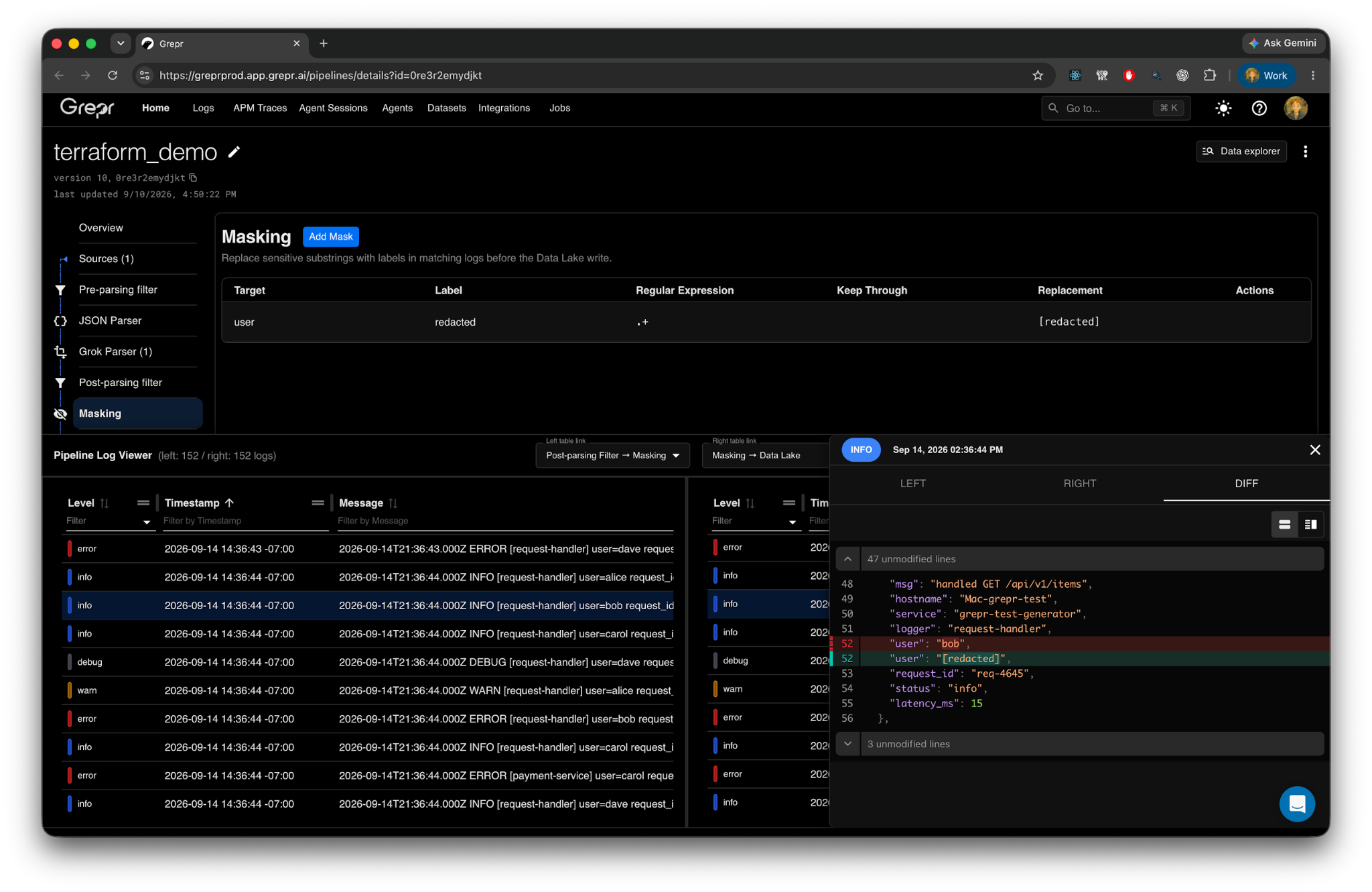
Looking at the draft result, the values before the masking step still show the users' first names, and after the masking step they all read "redacted." The change does what we asked, and we have confirmed it before anything real was modified.
Because this pipeline is managed as code, the change goes in through Terraform. Move the updated pipeline JSON configuration into place, run terraform plan, and you will see a single change: a "redacted" value added for the user path. Run terraform apply, and Grepr updates the live pipeline.
In the Grepr UI, the pipeline shows an update in progress. The masking step now has the user attribute as its target, to be replaced with the redacted value. After a minute or so, the update finishes.
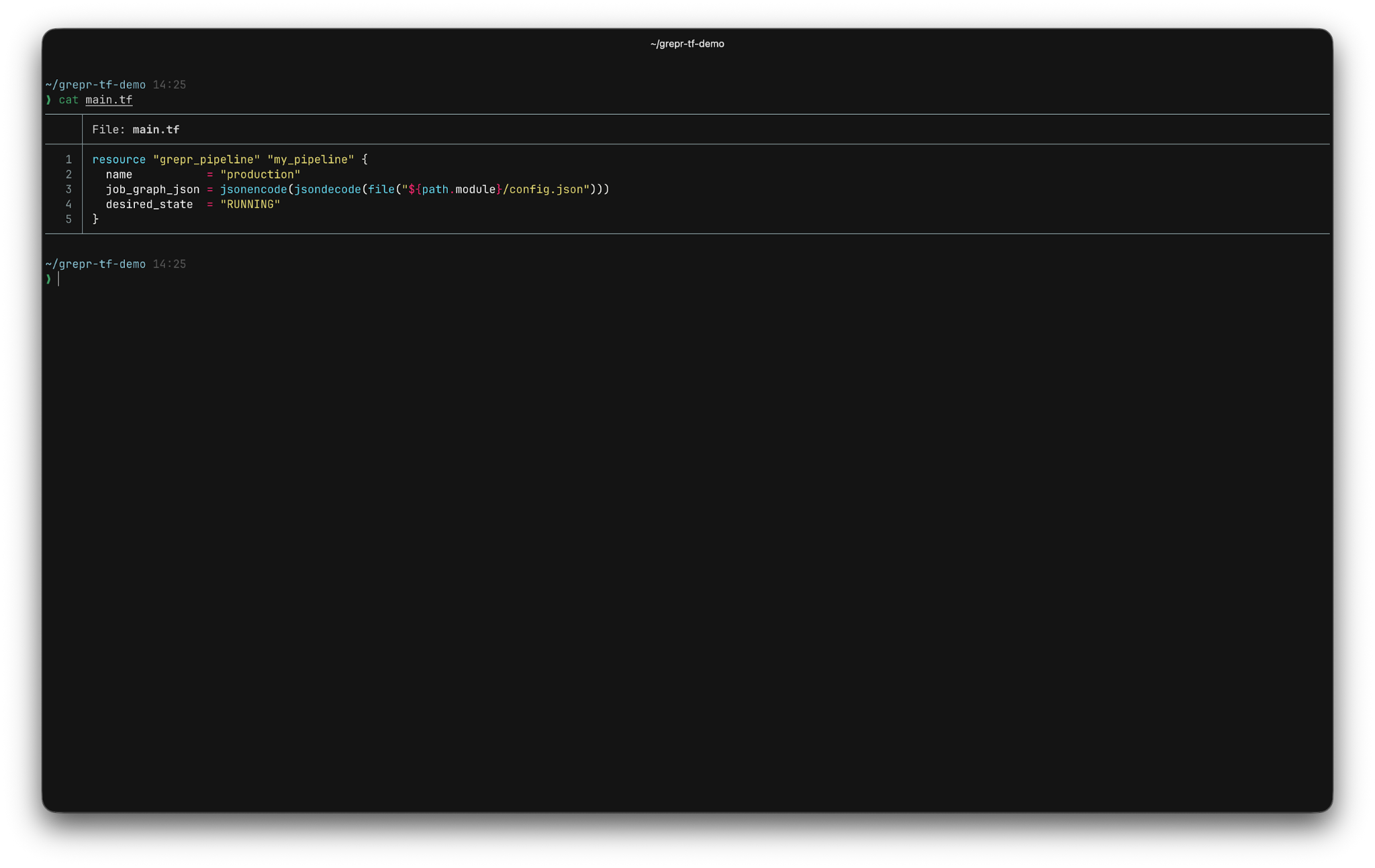
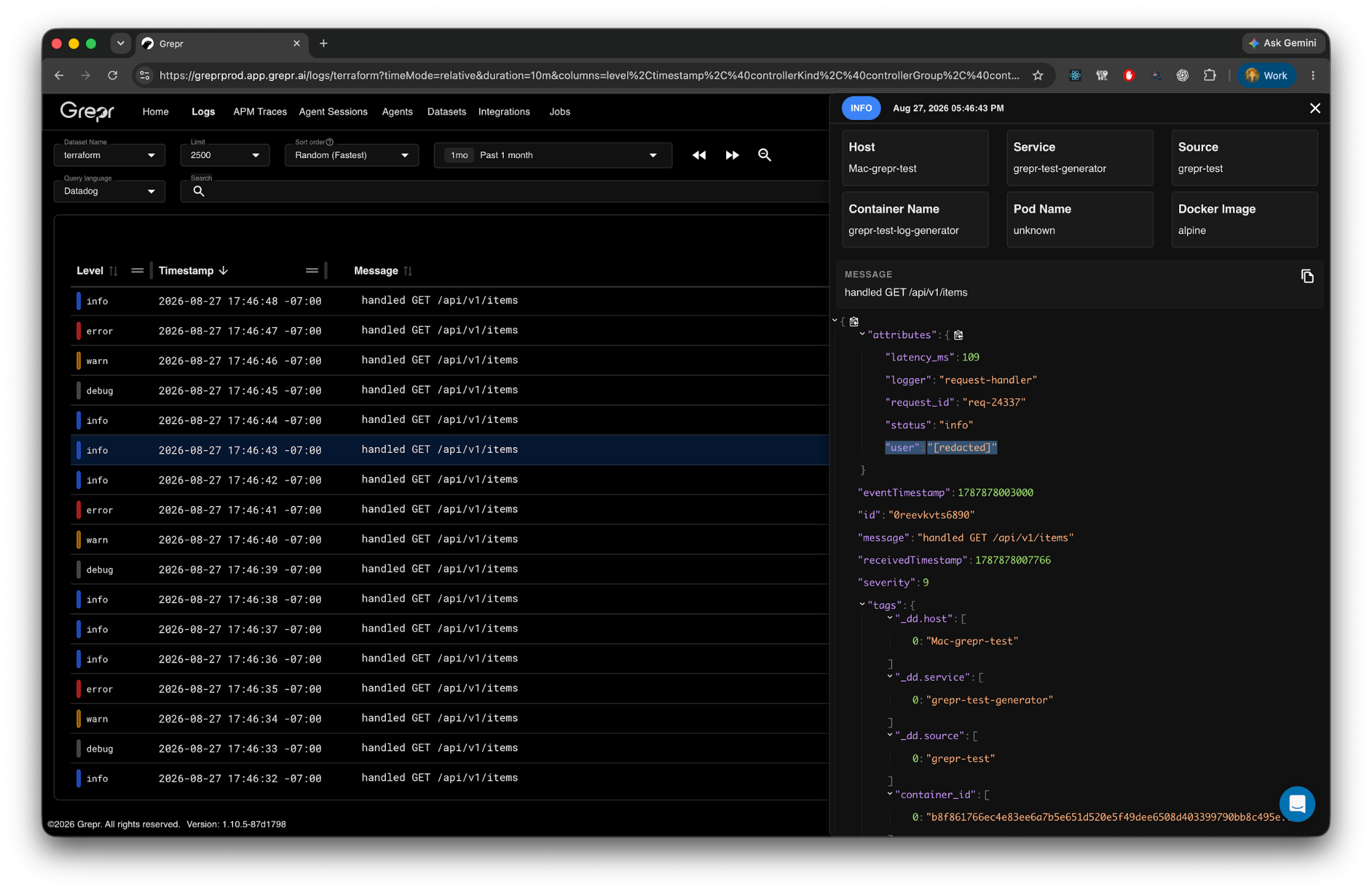
Run one more query and look at the last minute of traffic. The user values coming through are now redacted. The sensitive field is masked before it leaves the pipeline, the change was tested before it shipped, and it lives in your Terraform configuration where the next engineer can find it.
Three things make it worth doing this way. Claude Code writes the masking change, so you are not hand-editing pipeline configuration. The draft job proves the change works against real traffic with no risk to your data or your dashboards. And Terraform keeps the whole thing as code, so the fix is reviewable and repeatable, and anyone on the team can see exactly what changed and why.
Want to try it on your own pipeline? Get started free, or talk to us.
Add a masking operator to your Grepr pipeline. It rewrites the value of a chosen attribute, for example a user field, to a fixed value like "redacted" before the data is forwarded to your vendor. In this walkthrough, a Claude Code agent generates the masking operator using the Grepr plugin's masking skill.
The plugin includes a masking skill. When prompted to redact an attribute on a specific pipeline, it generates the masking operator for that pipeline and runs a draft job to test the change, so you do not have to hand-write the configuration.
Use the Grepr CLI's job draft action. It runs live traffic through a copy of the pipeline with your change in place, but it does not write the output anywhere. Nothing lands in your data lake, and nothing goes to your observability vendor, so you can compare the output before and after your edit with no risk.
Yes. The pipeline is defined as a Terraform resource backed by a pipeline JSON file. You apply the masking change by updating the JSON, running terraform plan to review the single change, and running terraform apply to update the live pipeline. The change stays in your Terraform configuration where the whole team can see it.
Masking applies to traffic flowing through the pipeline after the change is applied. In the walkthrough, a query over the most recent minute of traffic confirms the user values are being redacted once the update finishes.